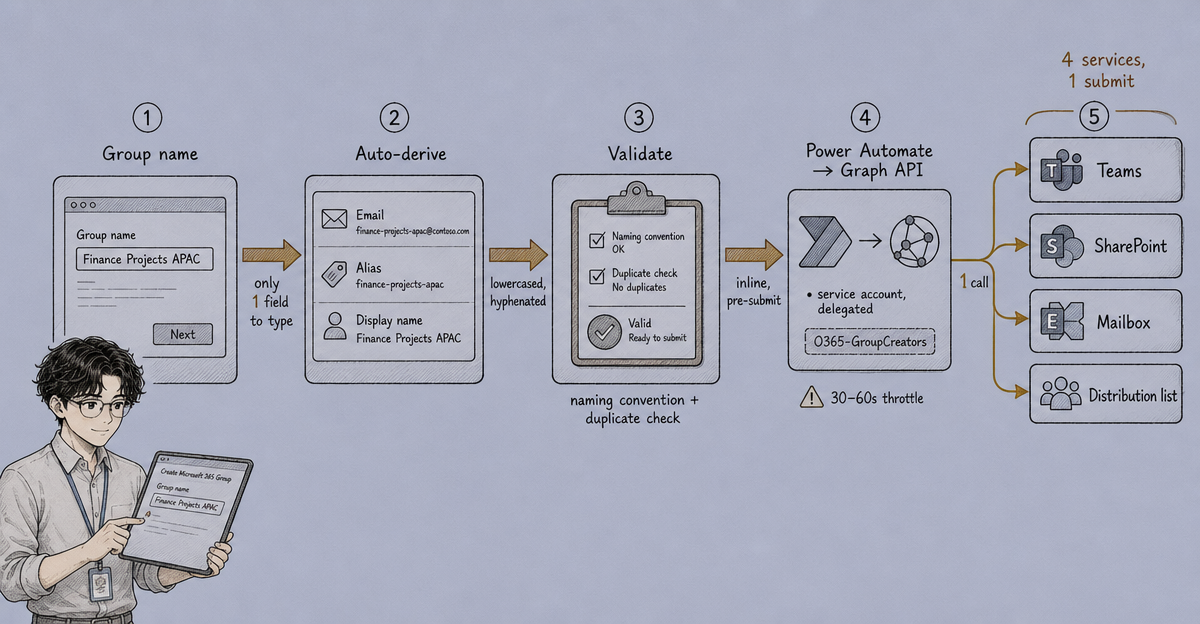
This was one of the first automation tools I built on the Microsoft Power Platform — a PowerApps canvas app that replaces a manual, error-prone group creation process with a guided form that auto-generates the required fields and enforces naming conventions before anything gets provisioned.
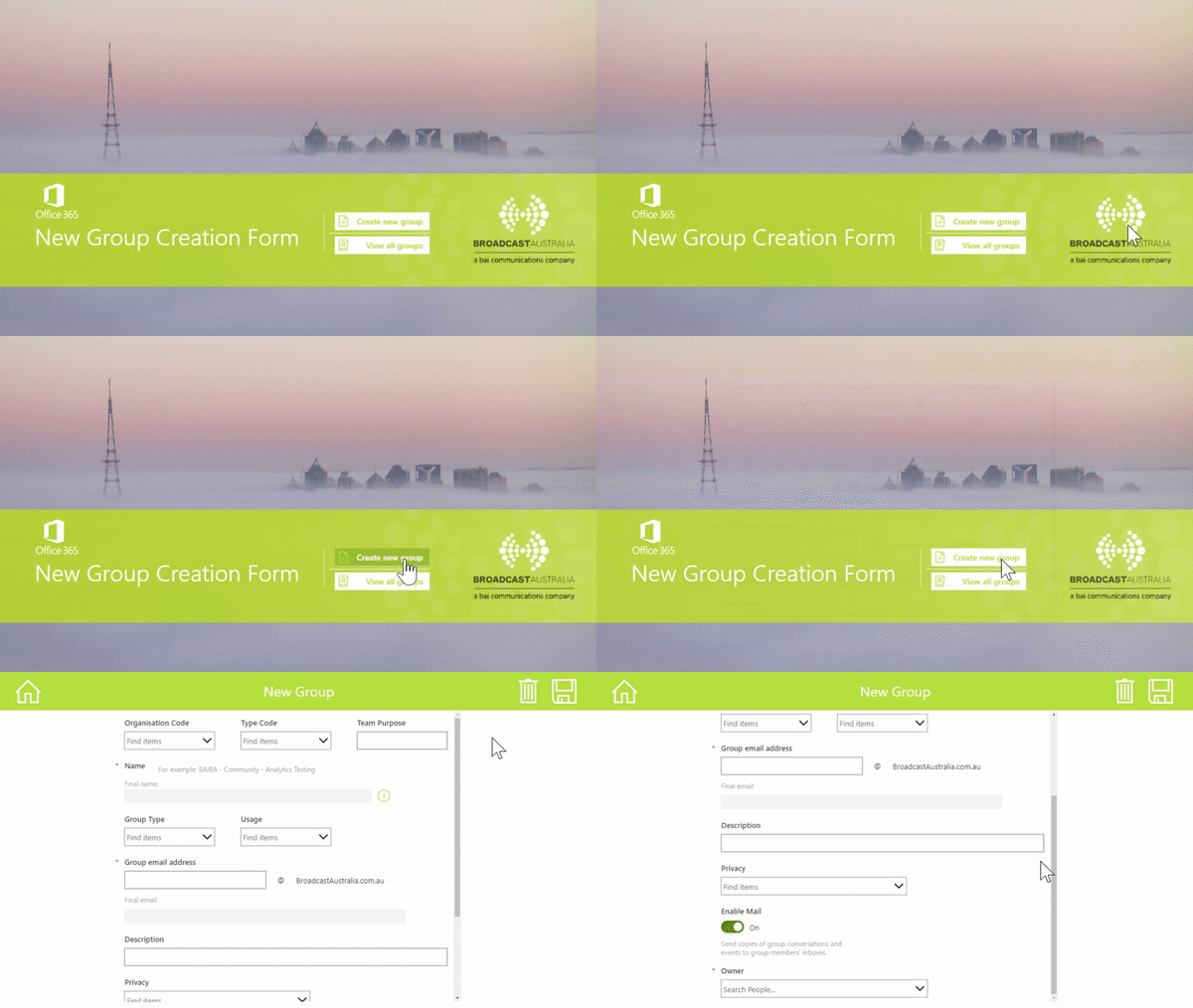
The Problem
Creating a new Office 365 group (which provisions a Teams channel, a SharePoint site, an Exchange mailbox, and an associated distribution list simultaneously) was being done manually by IT admins. The manual process had two failure modes:
- Typos — email addresses and group names entered by hand led to inconsistent formatting and occasionally broken provisioning
- Naming convention violations — groups that didn’t follow the organisation’s naming standard required rework after provisioning, sometimes after the group was already in use
The ask was: build something that anyone could use (not just IT admins) that prevented both of these problems before submission.
Proposed Solution
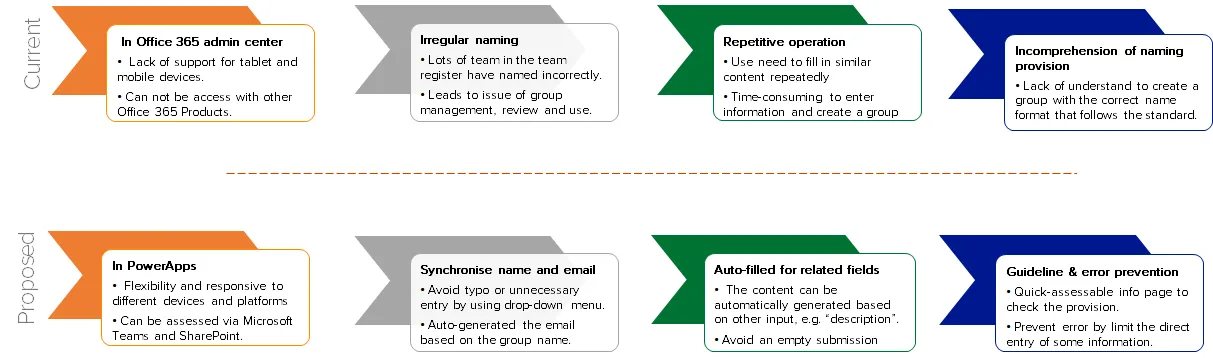
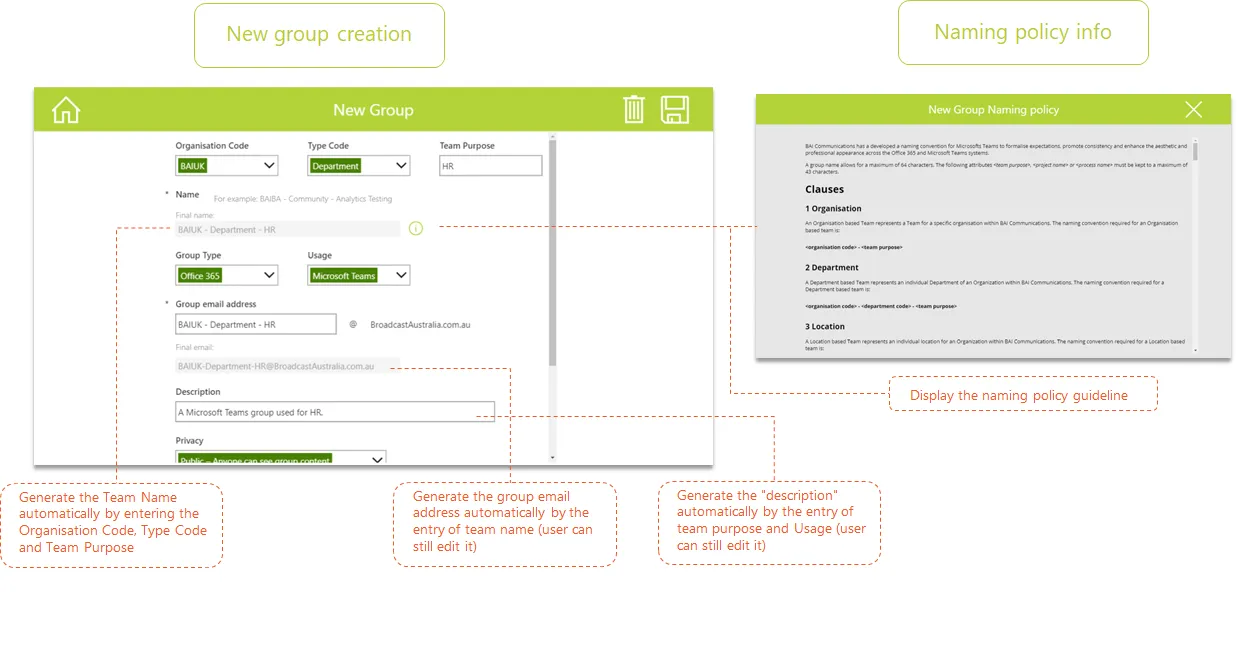
The PowerApps form takes a group name as the primary input and derives everything else:
- Email address auto-generated from the group name (lowercased, spaces replaced with hyphens, domain appended)
- Group alias normalised to match the email prefix
- Display name formatted to match the naming convention (department prefix, descriptive name, year suffix)
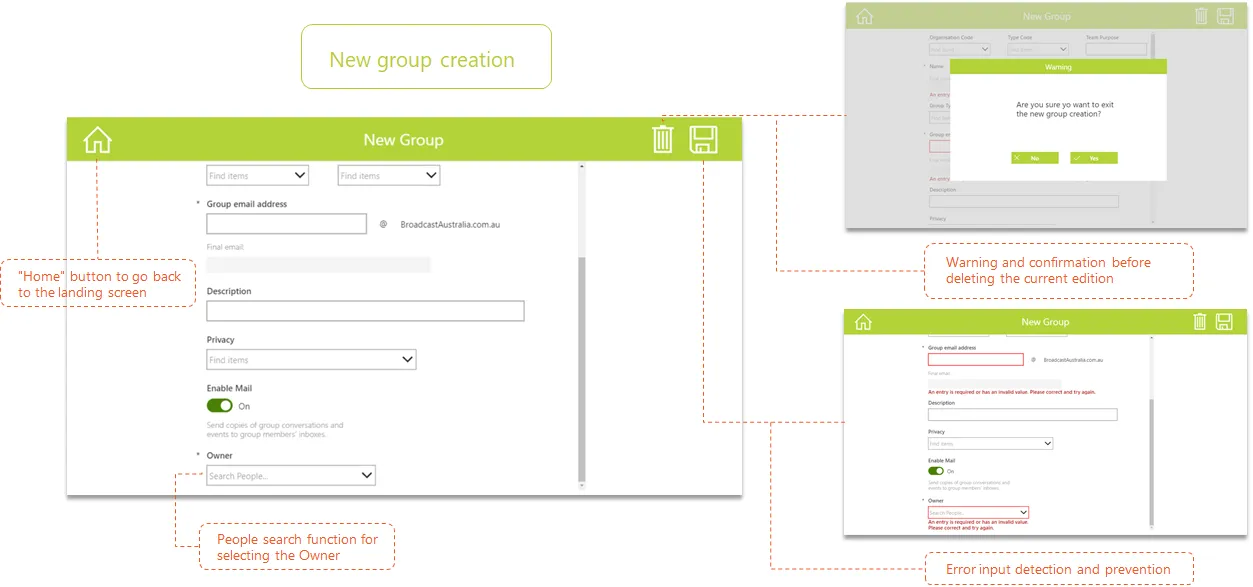
The user can review all derived fields before submitting. Nothing is editable except the source group name and a small set of configurable metadata fields (owner, privacy setting, description). This enforced-derivation approach eliminated the typo problem entirely — there’s only one field to type.
Application Snapshots
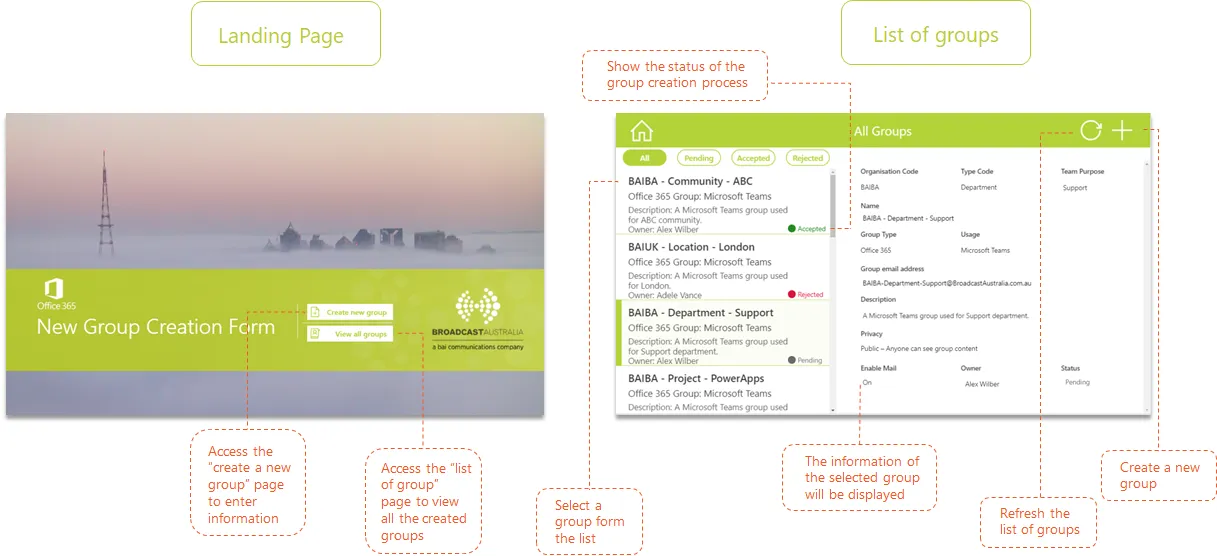
Solution Design
Access & Permissions Design
The app was embedded in three surfaces:
- Microsoft Teams — pinned as a tab in the IT channel
- SharePoint — added to the IT team site as a web part
- Browser — accessible via direct PowerApps link
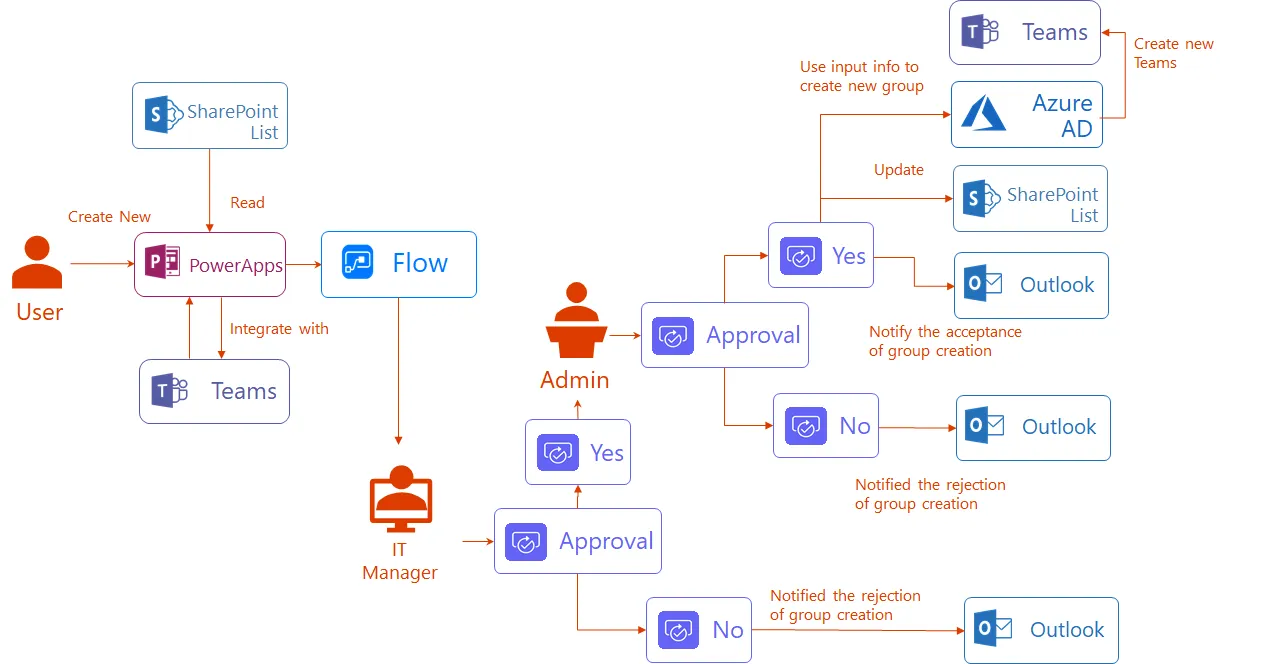
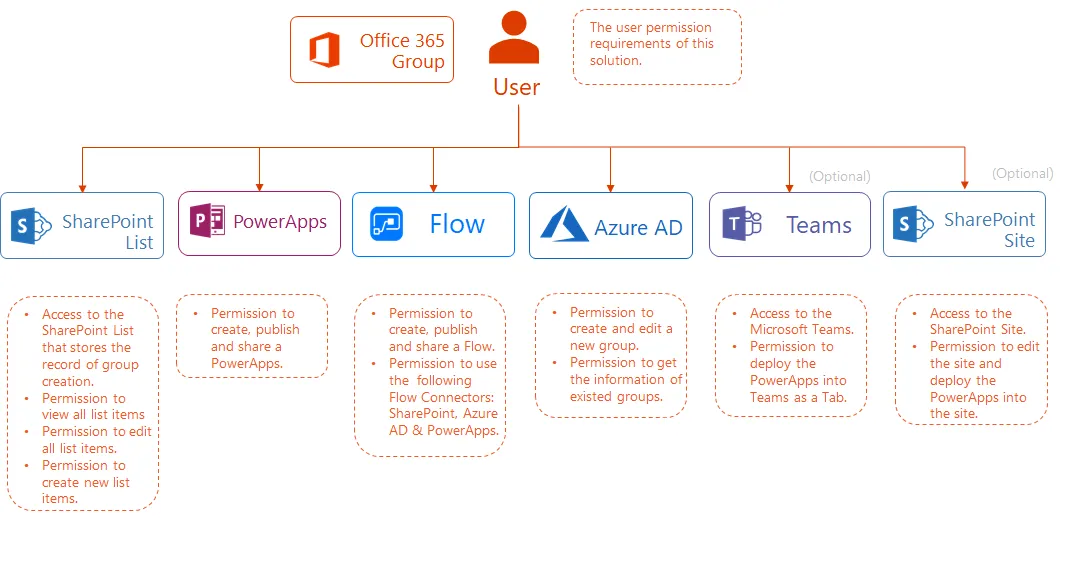
Permission was scoped using Azure AD security groups. Only users in the O365-GroupCreators group could submit; others saw a read-only preview mode. Power Automate handled the actual group creation call to the Microsoft Graph API, running under a service account with delegated permissions rather than user permissions — isolating privilege at the automation layer, not the app layer.
Key Features and Benefits
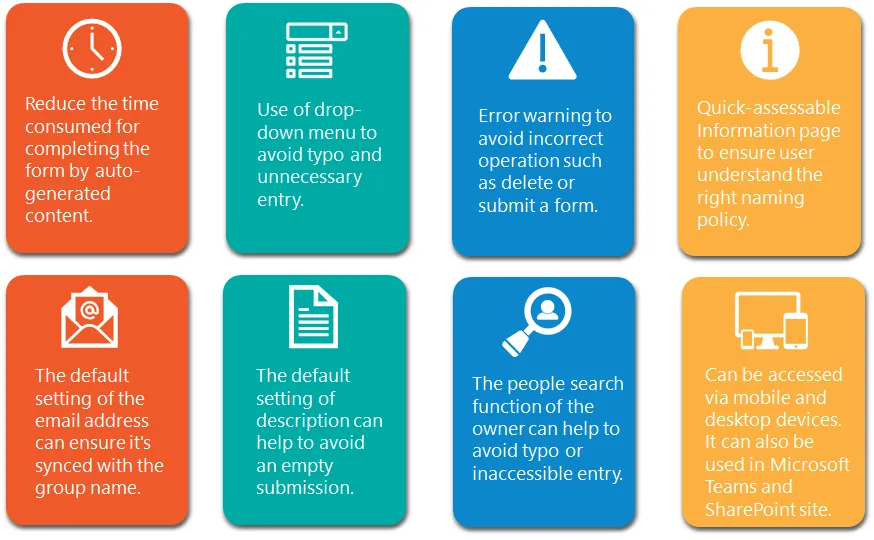
| Feature | How It Works |
|---|---|
| Name validation | Real-time check against existing groups via Graph API connector |
| Auto-derived fields | Email, alias, display name generated from group name input |
| Naming convention enforcement | Pattern match with inline error before submission |
| Lifecycle tagging | Optional expiry date attached as group metadata for review workflows |
| Submission confirmation | Email sent to requestor + IT admin on successful provisioning |
What Worked and What Didn’t
Worked well: The auto-derivation pattern. Users found it intuitive — type the name once, see everything else fill in. The validation against existing groups (to prevent duplicates) caught real collisions in the first week of deployment.
Friction point: Power Automate’s Graph API connector had throttling issues during bulk testing. Multiple simultaneous submissions caused provisioning delays of 30–60 seconds, which the app surfaced as a spinner with no meaningful progress feedback. A better UX would show the user that their request is queued and send the confirmation email asynchronously rather than blocking the form.
Lesson: PowerApps is fast to build on but reaches its limits quickly when you need fine-grained feedback from async operations. For a more robust version, the provisioning logic would live in an Azure Function with a webhook callback — giving the app a real status update endpoint rather than relying on Power Automate’s opaque execution model.
This was my first hands-on experience with the Microsoft Power Platform, and it shaped how I think about low-code tooling generally: excellent for the 80% case, and worth knowing exactly where the ceiling is before you commit to it for something critical.