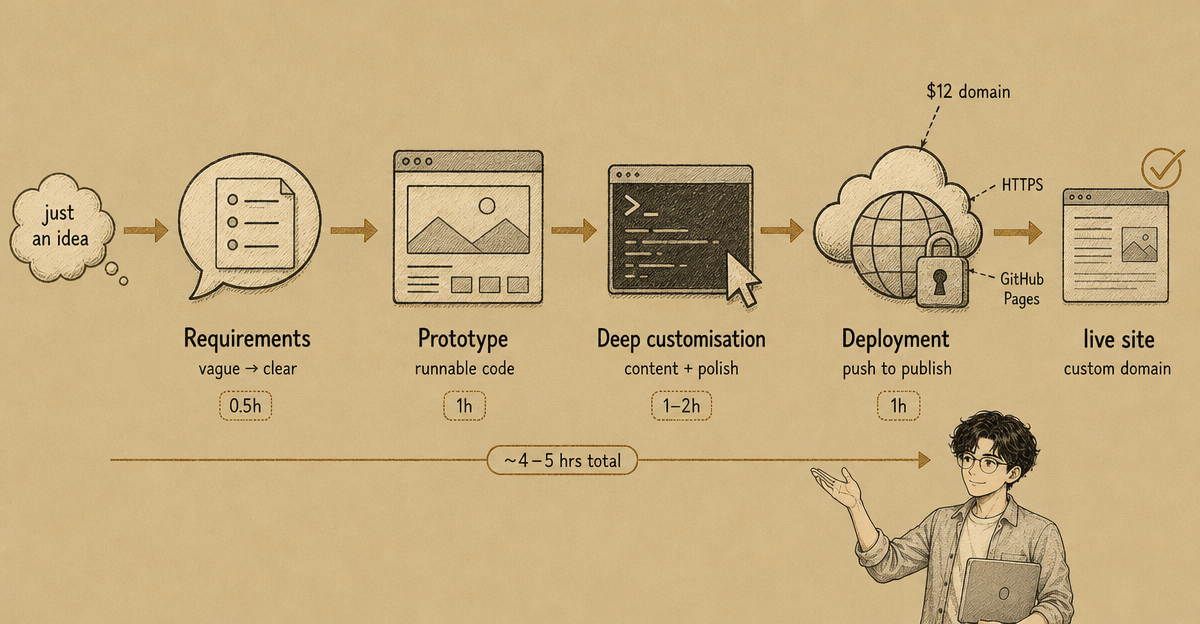
TL;DR
This article documents the complete process of building and deploying my personal site alex-huang.dev from scratch — no idea, no design mockups, no templates — in a single afternoon.
Toolchain: ChatGPT → Google Gemini → Claude Code → GitHub Pages.
Total time: roughly 4–5 hours. No design mockups, no purchased templates. The only cost was a $12 domain fee.
A few things I discovered:
- AI tools don’t make decisions for you — they help you turn “vague” into “actionable”
- GPT handles requirements gathering, Gemini handles prototyping, Claude Code handles deep customisation — they’re different stages of the same pipeline, not competitors. I chose them because I consider each to be SOTA in their respective domain
- Deployment is the most underestimated stage — leave yourself enough time
Why I Wrote This
When I graduated from uni, I built my first personal site to help with the job hunt. WordPress, stock template, weeks of on-and-off work before it finally went live. Even then, it felt like a significant achievement.
Last week, a thought hit me: with the tools and experience I have now — so much more than back then — if I started from scratch again, how fast could I go?
I set myself a challenge: one day, zero to live. “Zero” meaning I didn’t even have an idea — I had no clue what kind of site I wanted to build.
This article is the complete record of what happened: what I ran into, how I solved it, which tools genuinely pulled their weight, and where I got tripped up.
What the Finished Site Looks Like
The completed site: alex-huang.dev
- Home page: Hero section + skills showcase + testimonials
- Projects page: 5 complete case studies across Salesforce and AI projects
- Blog: tech articles I can keep adding to
- Resume page: auto-rendered from a resume data file
- Deployment: GitHub Pages + GitHub Actions (push to publish — and it’s free!)
- Domain: custom domain, HTTPS fully configured
Compared to the WordPress version from back then: far more maintainable, faster, nearly zero running cost — and more importantly, it’s a system I actually own, not a CMS platform I’m just a tenant on. I can define exactly what I want: the look, whatever interaction style I feel like (flashy or understated), content that won’t get deleted out from under me, and complete freedom over deployment!
Prerequisites / What You’ll Need
Tool accounts:
- GitHub account (for deployment, free)
- OpenAI account (ChatGPT, for requirements gathering)
- Google AI Studio account (Gemini, generous free tier)
- Claude Code CLI (terminal tool, requires a Claude Pro subscription)
- (All of these AI tools have plenty of alternatives — just go with whatever you already have and like)
Local environment:
- Node.js (v18+)
- Git
- A terminal (macOS Terminal / WSL / iTerm all work fine)
- (Don’t let this put you off — AI can help you install all of it)
Domain:
- Optional, but recommended.
.devdomains are around $12/year, and many have first-year discounts
You’ll need to be comfortable with:
- Git basics (
git add / commit / push) - Reading basic HTML/CSS (no need to write it — just recognise it)
- Around 8 hours of uninterrupted time
The Overall Approach
The whole workflow breaks into 4 phases:
Requirements (0.5h)  →  Prototype (0.5–1h)  →  Deep Customisation (1–2h)  →  Deployment (1h)
     ChatGPT                 Gemini                  Claude Code               GitHub Pages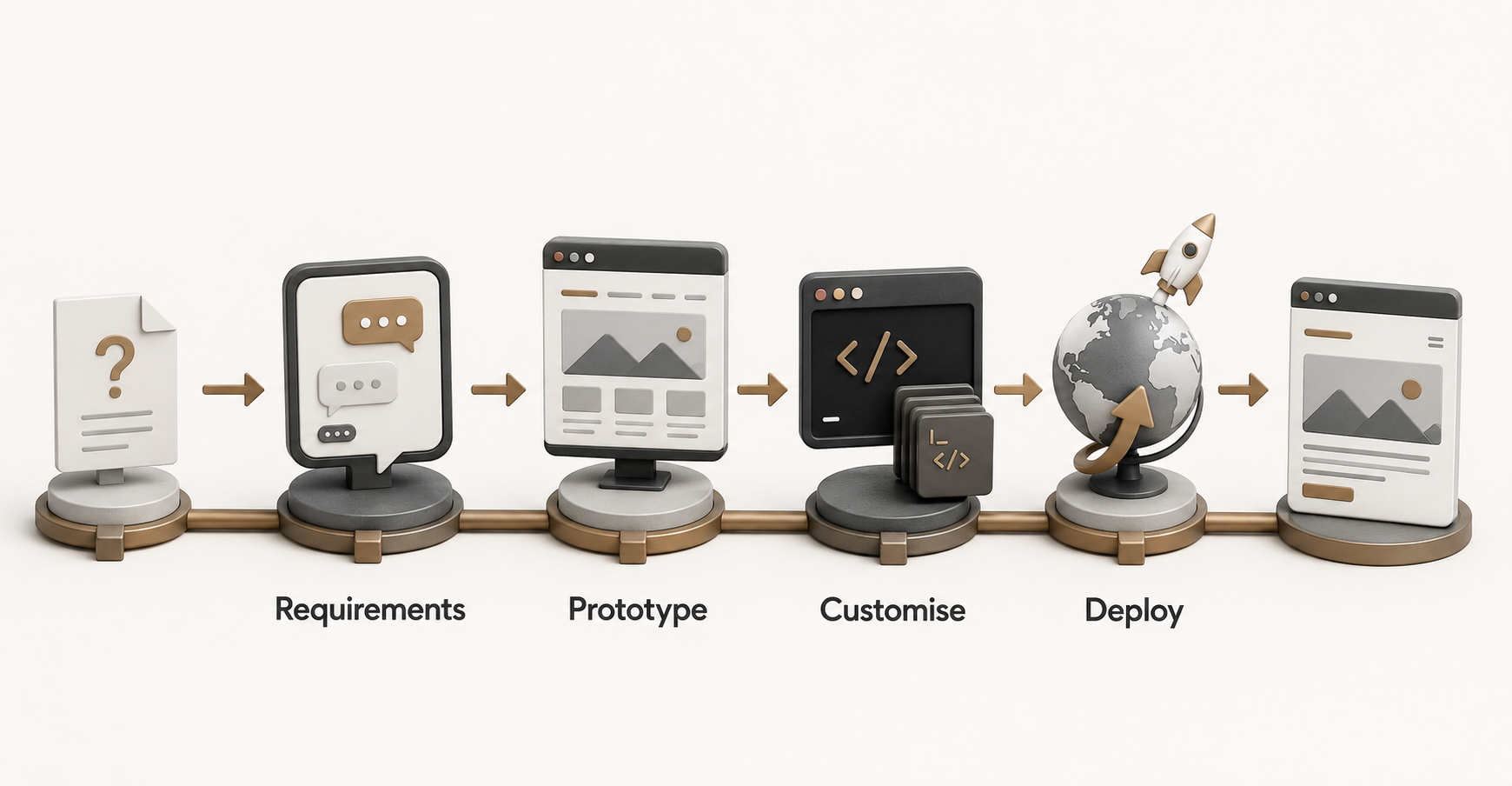
- Phase 1 is the easiest to skip, but has the biggest downstream impact: vague requirements mean constant rework later
- Phase 2 is the fastest and most surprisingly good: Gemini produces runnable code, not wireframe sketches
- Phase 3 takes the most time and delivers the most value: AI does the writing, you make the decisions
- Phase 4 is the easiest to underestimate: deployment has several critical checkpoints — any one of them can eat your time
Step 1. Use ChatGPT to Turn Vague Requirements into Something Clear
What This Step Does
Takes “I want to build a website” — that fuzzy, non-committal goal — and turns it into a requirements brief with a technical direction, page structure, and visual style.
Why Do It This Way
In the age of Vibe Coding, AI can absolutely generate code from vague input. But the vaguer the input, the more rework you’ll do later. Spending one hour getting requirements clear can save at least four hours down the track.
How To Do It
Open ChatGPT and treat it like a product consultant. Work through these prompts in sequence:
Tech stack discussion:
I want to build a personal tech blog + portfolio site. Requirements:
- Static deployment, prefer GitHub Pages (free)
- Custom domain support
- Blog functionality (categories, tags, RSS)
- No backend needed

Please recommend suitable tech stacks and explain the trade-offs.
Design references:
Recommend 10 developer personal sites with strong design, with links.
Style direction: minimal, dark mode, modern, medium information density.
Pick 3–5 you genuinely like and save screenshots.
Ask it to write a requirements brief:
Based on our discussion, write me a personal site requirements brief covering:
1. Tech stack choice and reasoning
2. Page structure (which pages, what's on each)
3. Visual direction (style, colour palette, typography direction)
4. Core feature list

Make it clear and structured — I'll be using this brief to generate code next.
Expected Output
You should have a 1–2 page requirements brief covering: tech stack, page list, visual direction, feature list.
FAQ
Q: How detailed does the requirements brief need to be? A: Not extremely detailed. The key is that the “visual direction” section is specific — a few sentences describing reference examples makes a big difference to what Gemini generates. Everything else can be rougher.
Q: What if I have no idea which tech stack to choose? A: For a static blog, Astro is the go-to choice (excellent Markdown support, mature ecosystem) or Next.js (more flexible but heavier). I went with Astro + the astro-paper theme as a starting point.
Verification
Read through the requirements brief and confirm you can answer:
- What pages does the site have?
- What’s the overall visual feel? (Reference examples are ideal)
- How will it be deployed?
Step 2. Use Google Gemini to Generate a Working Prototype
What This Step Does
Feed the requirements brief to Gemini and get back website code that runs locally straight away.
Why Gemini
- Large free token quota — great value for a one-off project
- Strong at generating complete, runnable code (not pseudocode)
- Handles long prompts (full requirements brief + resume content) reliably
How To Do It
Open Google AI Studio, start a new conversation, and paste:
I need to build a personal tech blog + portfolio site.

[paste your requirements brief]

My resume content is:
[paste your resume, or key details: name, role, skills, project list]

Please generate complete website code. Tech stack: Astro + Tailwind CSS.
Requirements:
- Runs locally straight away
- Dark mode by default
- Minimal modern aesthetic with entrance animations
- Follow the page structure from the requirements brief
Wait a few minutes — Gemini will output complete code.
Run it locally:
# If Gemini generates an Astro project
npm install
npm run dev
# Open http://localhost:4321
Expected Output
You’ll see the skeleton of your site in the browser. Structure broadly right, visual direction right. At this point you’re probably at 60–80% done.
FAQ
Q: What if the Gemini-generated code won’t run? A: Check the terminal error first. The most common cause is dependency version conflicts — copy the error into ChatGPT and ask for a fix.
Q: What if the result looks nothing like what I had in mind? A: Keep iterating in the same conversation: “Change the Hero section on the home page to look like this…”. Gemini retains context well — no need to start over.
Q: Can I use Claude instead of Gemini? A: Yes, it works well too. I chose Gemini for this phase because there’s no need to touch the file system yet — a web interface is enough, and Gemini has a larger free quota.
Verification
-
npm run devruns successfully locally - You can see complete pages in the browser with no blank screen
- No errors in the terminal (warnings are fine to ignore for now)
Step 3. Use Claude Code for Deep Customisation
What This Step Does
Building on what Gemini generated, handle everything that requires understanding the full project context: integrating blog functionality, migrating content, personalising the design, adding animations.
Why Switch to Claude Code
Gemini is great at “generate from scratch”. But when it comes to “modify existing code”, it lacks file system context. Every change requires manually copy-pasting code back in, and anything moderately complex will introduce bugs quickly.
Claude Code runs locally, reads and writes files directly, and understands the full project structure. From the start of a conversation, it already has global context — handling tasks that involve coordinated changes across multiple files is far smoother.
How To Do It
Install Claude Code:
npm install -g @anthropic-ai/claude-code
claude
You’ll be prompted to log in with your Claude Pro account on first run.
Start it in your project directory:
cd your-website-folder
claude
Then describe what you need in plain English:
Convert this site to support blog functionality.
Blog posts should be written in Markdown, stored in the src/data/blog/ directory.
The frontmatter format for each post should follow Astro Content Collections.
I have these old articles — help me migrate them into the right format:
[paste old article content]Add an entrance animation to the home page:
When the page loads, each section fades in from below in sequence, 100ms apart.
Use pure CSS transitions — don't pull in a new animation library.Claude Code will read your files directly, show you the proposed changes, and write them once you confirm.
Expected Output
After this step, the site should be at 90–95% completion: real content, complete functionality, and the look you want.
FAQ
Q: What if the site breaks after Claude Code makes changes?
A: Run npm run build and paste any errors back into Claude Code: “Your changes caused this error — please fix it.” It can usually locate and fix the problem directly.
Q: What if it changed something I didn’t want it to?
A: Use git diff to see exactly what changed, then tell it “only change X file, don’t touch Y”. It’s good practice to git commit after each feature is complete so you can roll back if needed.
Q: I don’t know code — how do I know what it changed? A: Ask it: “Explain what you just did.” It’ll give you a plain-English breakdown — no need to read the code yourself.
Verification
After each feature block is complete:
npm run build   # confirm the build passes
npm run preview # preview the final result locally
Check:
- Blog post list displays correctly
- Clicking a post renders content correctly
- Home page entrance animation triggers correctly
- All pages build without errors
Step 4. Deploy with GitHub Pages
What This Step Does
Push your local code to GitHub, configure automatic deployment, bind a custom domain, and make the site publicly accessible.
Why GitHub Pages
- Completely free
- Native integration with GitHub repos — push code to publish
- Custom domain + HTTPS support
How To Do It
1. Create a GitHub repo and push your code:
git init
git add .
git commit -m "feat: initial launch"
git remote add origin https://github.com/your-username/repo-name.git
git push -u origin main
2. Create a GitHub Actions workflow:
Create .github/workflows/deploy.yml in your project root:
name: Deploy to GitHub Pages

on:
  push:
    branches: [main]
  workflow_dispatch:

permissions:
  contents: read
  pages: write
  id-token: write

concurrency:
  group: pages
  cancel-in-progress: false

jobs:
  build:
    runs-on: ubuntu-latest
    steps:
      - uses: actions/checkout@v4
      - uses: actions/setup-node@v4
        with:
          node-version: 20
          cache: npm
      - run: npm ci
      - run: npm run build
      - uses: actions/configure-pages@v5
      - uses: actions/upload-pages-artifact@v3
        with:
          path: dist/

  deploy:
    needs: build
    runs-on: ubuntu-latest
    environment:
      name: github-pages
      url: ${{ steps.deployment.outputs.page_url }}
    steps:
      - id: deployment
        uses: actions/deploy-pages@v4
3. Enable Pages in your GitHub repo Settings:
Go to your repo → Settings → Pages → Source, and select GitHub Actions (not Branch).
⚠️ This step is very easy to forget. If you skip it, your first CI run will fail immediately.
4. Bind a custom domain (optional):
Create a CNAME file in your project’s public/ directory — the contents should be just your domain name:
alex-huang.devAdd DNS records at your domain registrar:
| Type | Name | Value |
|---|---|---|
| A | @ | 185.199.108.153 |
| A | @ | 185.199.109.153 |
| A | @ | 185.199.110.153 |
| A | @ | 185.199.111.153 |
| CNAME | www | your-username.github.io |
Then in your repo’s Settings → Pages → Custom domain, enter your domain and tick Enforce HTTPS.
5. Wait for CI to complete:
git add .github/workflows/deploy.yml public/CNAME
git commit -m "chore: add deploy workflow and custom domain"
git push
Go to the Actions tab in your GitHub repo and check the status. Green = deployed successfully.
Expected Output
- After CI completes: your site is live at
https://your-username.github.io/repo-name - After DNS propagates: custom domain accessible (usually takes a few minutes to a few hours)
FAQ
Q: CI failed with an error about configure-pages?
A: 99% of the time it’s because Pages Source hasn’t been set to “GitHub Actions”. Go to Settings → Pages and change it, then re-trigger CI (empty commit push, or manually re-run from the Actions tab).
Q: Custom domain configured but getting a 404?
A: Check in this order: (1) are the DNS records saved at your registrar? (2) is the CNAME file in the public/ directory? (3) is the Custom domain filled in under Settings? (4) has DNS propagated? (Check with whatsmydns.net.)
Q: Getting a permissions error on git push in WSL?
A: If your SSH key has a passphrase, a non-interactive WSL shell can’t enter it. Use HTTPS + a Personal Access Token (PAT) instead:
# Generate a PAT: GitHub → Settings → Developer settings → Personal access tokens
git remote set-url origin https://<your-PAT>@github.com/username/repo.git
git push
# Strip the token immediately after pushing
git remote set-url origin https://github.com/username/repo.git
Verification
- GitHub Actions → the workflow run shows green
- The GitHub Pages URL opens correctly
- If using a custom domain: the domain is accessible and the HTTPS cert is valid
Pitfalls I Hit
Pitfall 1: GitHub Pages Source Must Be Set Before You Push
Symptom: After pushing code, the Actions run throws an error — the configure-pages@v5 step fails immediately.
Cause: The configure-pages action requires the repo’s Pages Source to already be set to “GitHub Actions”. GitHub doesn’t enable this by default — you have to go into Settings → Pages and change it manually.
How I found it: Checking the Actions error log — one line read “Pages is not enabled”.
Fix: Before creating the workflow file, go to Settings → Pages and set the Source. Then push your code.
Pitfall 2: npm run preview Shows the Old Version
Symptom: Changed some code, ran npm run preview, the site still looked exactly the same. I thought the changes had been lost.
Cause: The preview command serves the contents of the dist/ directory directly — it doesn’t rebuild. If the last build was from an older version, that’s what you’ll see.
Fix: After making changes, always run npm run build first, then npm run preview.
# Correct approach
npm run build && npm run preview

# Don't use preview to verify new changes without building first
Pitfall 3: Downloaded SVG Files That Were Actually Error XML
Symptom: Images weren’t showing on the site. Checked the file — ls -lh showed it was only 275 bytes.
Cause: Some resource URLs (like files in an S3 bucket) may not have the right access permissions. When curl downloads them, it gets an HTTP 200, but the content is an XML error message. The filename looks fine, but the contents look like this:
<Error><Code>AccessDenied</Code><Message>Access Denied</Message></Error>Fix: Check the file size after downloading. A normal SVG icon is usually > 3KB; PNG/JPG files are larger. If a file is only a few hundred bytes, cat it to see what’s actually inside.
Pitfall 4: External CDN URLs Have Expiry Times
Symptom: A few months after the site went live, the logo suddenly stopped displaying.
Cause: Some CDNs (LinkedIn image URLs, for example) include expiry parameters — e.g. ?e=1774483200. Once that timestamp passes, the URL breaks.
Fix: Localise all image assets. Download them to public/images/ and reference local paths. Don’t hardcode external CDN URLs in your source code.
Why This Approach Works
The tool division of labour is the key. This workflow succeeds not because any single tool is extraordinary, but because each tool is doing exactly what it’s best at:
- ChatGPT’s strength is conversational brainstorming — turning fuzzy ideas into structured requirements
- Gemini’s strength is long-context code generation — fastest path from nothing to a runnable prototype
- Claude Code’s strength is local context + file system operations — handling complex, coordinated changes across multiple files
String the stages together, and that’s where the speed comes from.
Where This Approach Has Limits
Works well for:
- Static sites (blogs, portfolios, documentation sites)
- Personal projects with no backend or database requirements
- People with some technical background who aren’t afraid of a terminal
- Limited time, wanting to quickly validate an idea
Doesn’t work well for:
- Dynamic functionality (user accounts, comment systems, databases)
- Completely code-free scenarios (in that case, look at Wix or Squarespace)
- Commercial sites requiring highly customised design (the time cost there is much higher)
Things likely to change:
- AI tools are moving fast — Gemini and Claude’s code generation capabilities are still improving
- GitHub Actions workflow syntax occasionally has breaking changes — check the official docs directly
- Domain pricing and DNS configuration varies by registrar
A Cheat Sheet You Can Follow Directly
Minimal Step Checklist
- Step 1: ChatGPT brainstorm → output requirements brief (1h)
- Step 2: Gemini generate code → get it running locally (2h)
- Step 3: Claude Code deep customisation → content complete (3–4h)
- Step 4: GitHub Pages deployment → live (1h)
Command Reference
# Local development
npm install
npm run dev           # dev mode at http://localhost:4321
npm run build         # build for production
npm run preview       # preview build output (requires a build first)

# Git
git init
git add .
git commit -m "feat: initial launch"
git remote add origin https://github.com/username/repo.git
git push -u origin main

# HTTPS push in WSL (workaround for SSH passphrase issue)
git remote set-url origin https://<PAT>@github.com/username/repo.git
git push
git remote set-url origin https://github.com/username/repo.git
GitHub Pages DNS Configuration
| Type | Name | Value |
|---|---|---|
| A | @ | 185.199.108.153 |
| A | @ | 185.199.109.153 |
| A | @ | 185.199.110.153 |
| A | @ | 185.199.111.153 |
| CNAME | www | username.github.io |
Pre-Deployment Checklist
-
.github/workflows/deploy.ymlcreated and pushed - GitHub Settings → Pages → Source set to “GitHub Actions”
-
public/CNAMEfile contains your domain - Settings → Pages → Custom domain filled in
- DNS records saved at your registrar
- Latest workflow run in Actions shows green
Wrapping Up
The 3 most important takeaways:
- The bottleneck with AI-assisted site building isn’t code generation — it’s how fast you can make decisions. The clearer your requirements, the more precisely AI executes.
- Gemini for prototyping, Claude Code for deep customisation — they’re not competing tools, they’re two stages of the same pipeline.
- Deployment isn’t a “last 10 minutes” job. GitHub Pages configuration, DNS propagation, HTTPS certificate setup — any one of these can trip you up. Budget enough time.
The 3 pitfalls newcomers most need to watch for:
- Set Pages Source to “GitHub Actions” in your repo Settings before pushing — otherwise your first CI run will definitely fail
- Always
buildbeforepreview— otherwise you’re looking at an old version - Don’t reference external CDN URLs for images — download them locally first
If you can only remember one thing:
Don’t wait until everything is perfect before you start. Incomplete requirements? Start anyway. Design not quite right? Ship anyway. A site that’s actually live is always worth more than a perfect plan that never ships.